
Uncategorized
How to Use Seedance 2.0 for Free
How to Use Seedance 2.0 for Free If you want to try Seedance 2.0 without paying upfront, the good news is that new users

If you want to try Seedance 2.0 without paying upfront, the good news is that new users can start right away on SdanceAI and earn credits through daily tasks. This article shows you the practical way to access the tool, what you can make with it, and how to use your free credits efficiently.
1) Start with the free access path
Conclusion: The simplest way to use Seedance 2.0 for free is to sign up on SdanceAI and use the credits available to new users.
Why this matters:
According to the product information, new users can access Seedance 2.0 right away and earn credits through daily tasks. That means you do not need to wait for a separate invite or developer setup before testing the model.
What you can do:
- Create an account on the platform
- Check your available credits after sign-up
- Use daily tasks to earn more credits
- Start generating videos directly from the web app
Practical tip:
Before you generate anything, review the available credit balance and plan your first test prompts carefully. Short, focused tests help you learn the workflow without wasting credits.
2) Choose the right input type for your first video
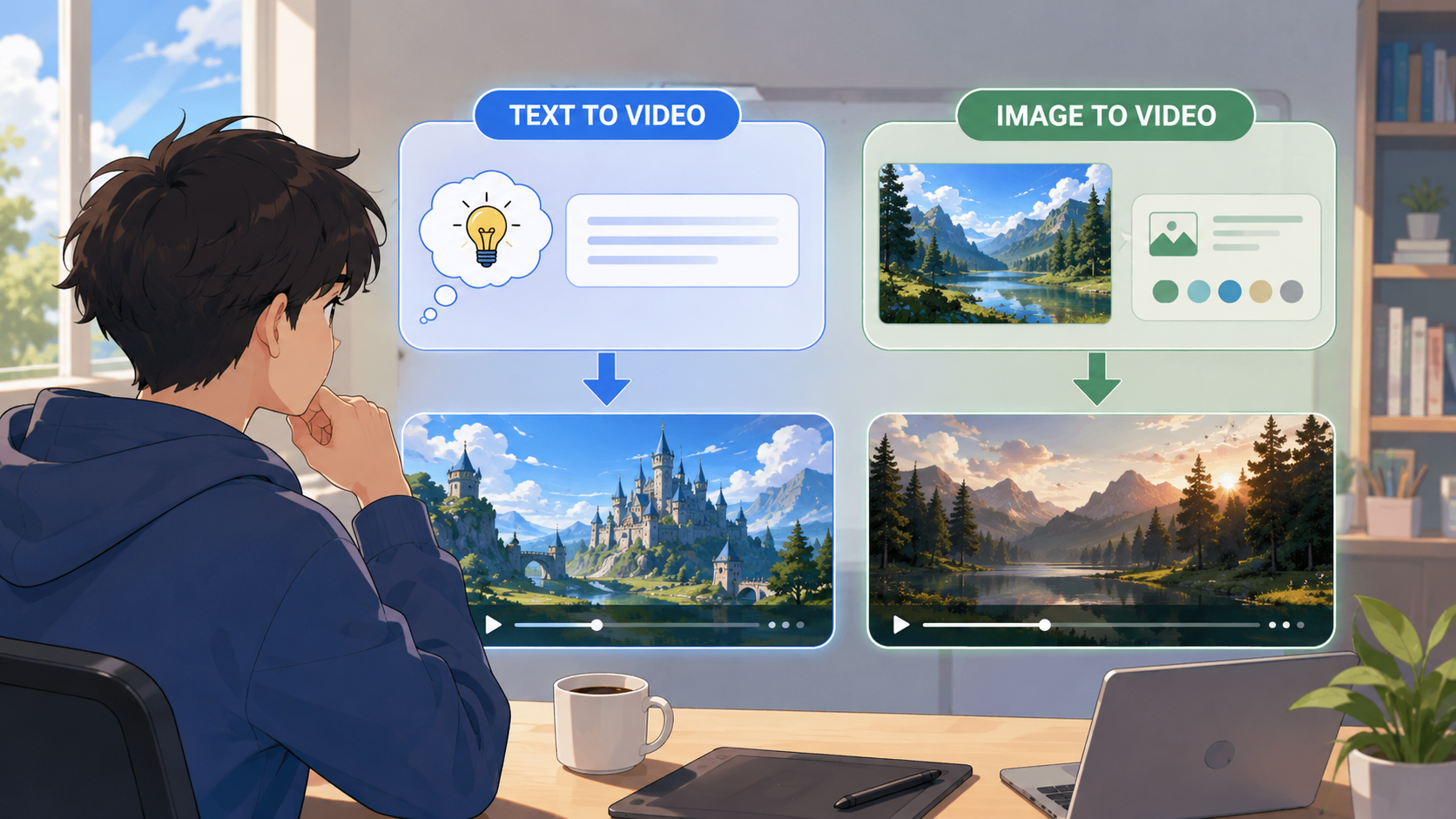
Conclusion: Seedance 2.0 supports both text-to-video and image-to-video, so you should pick the input type that best matches your goal.
Why this matters:
The platform is built for short AI video creation from either a prompt or a reference image. If you only have an idea, use text-to-video. If you already have a visual direction, use image-to-video to guide the output.
How to decide:
| Use case | Best input type | Why |
|---|---|---|
| You have a concept or scene idea | Text to video | Fastest way to start from a prompt |
| You want the video to follow a specific look | Image to video | Uses one reference image as the visual base |
| You are testing the model quickly | Text to video | Easier to iterate with small prompt changes |
| You want stronger visual consistency | Image to video | Helps anchor the animation style |
Practical tip:
Start with a short prompt or a single clear reference image. Since the model is designed for short-form production, clean inputs usually make the first test more useful.
3) Keep your generation within the supported limits
Conclusion: Seedance 2.0 is built for short videos, so you should work within its resolution and duration limits for the best results.
Why this matters:
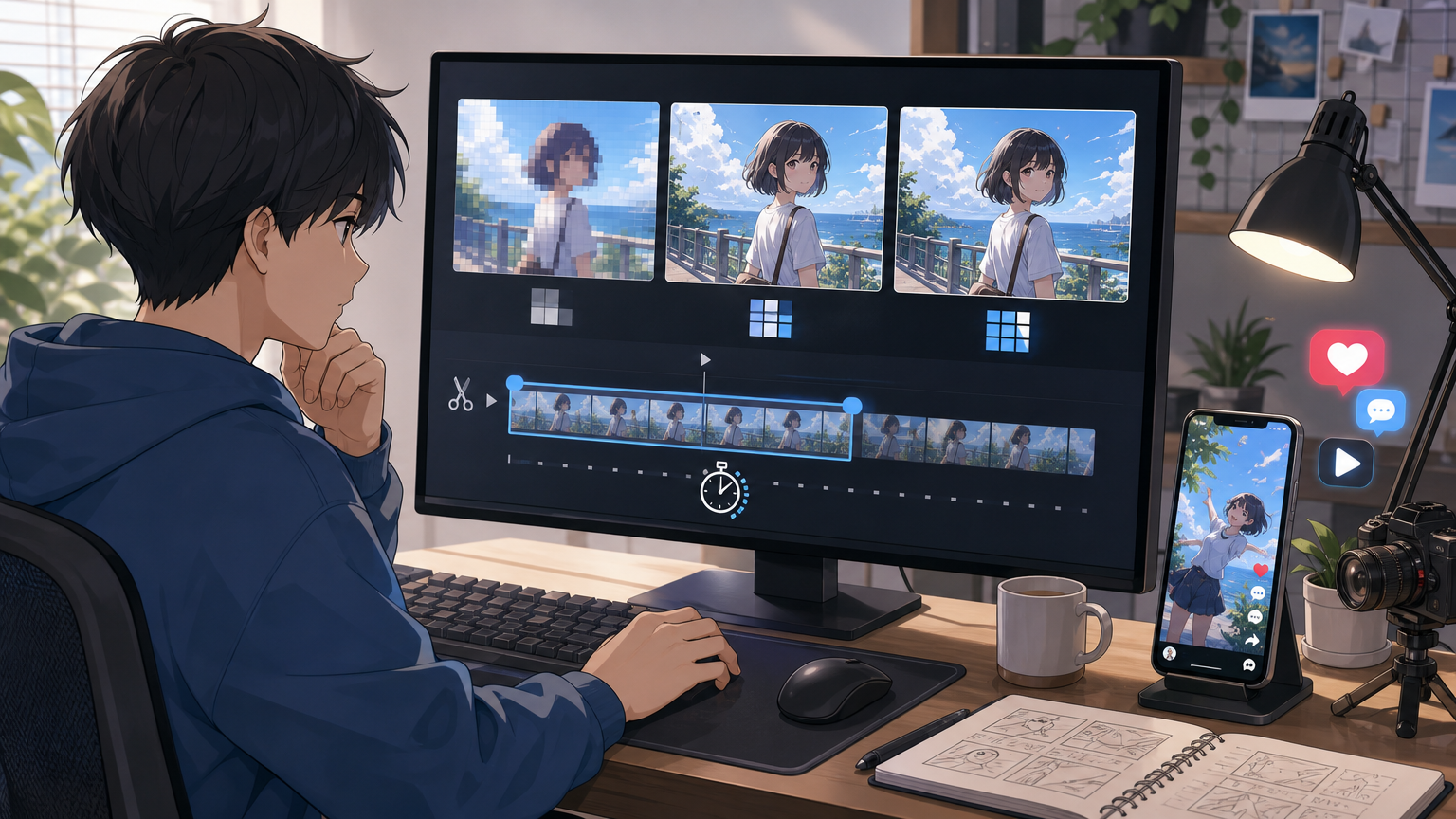
The platform supports 480p, 720p, and 1080p, with videos up to 15 seconds. That means it is suitable for short-form clips rather than long narrative scenes.
Supported limits at a glance:
| Feature | Supported range |
|---|---|
| Resolution | 480p, 720p, 1080p |
| Duration | Up to 15 seconds |
| Output format | MP4 |
Practical tip:
If you are just testing the model for free, begin with a shorter clip and a moderate resolution. That makes it easier to compare outputs and adjust your prompt before using more credits.
4) Use your free credits efficiently
Conclusion: The best way to get value from the free access is to test with a plan, not random prompts.
Why this matters:
Free credits are more useful when each generation teaches you something. Since Seedance 2.0 is designed for short-form video, you can quickly explore different styles without spending credits on long experiments.
A simple workflow:
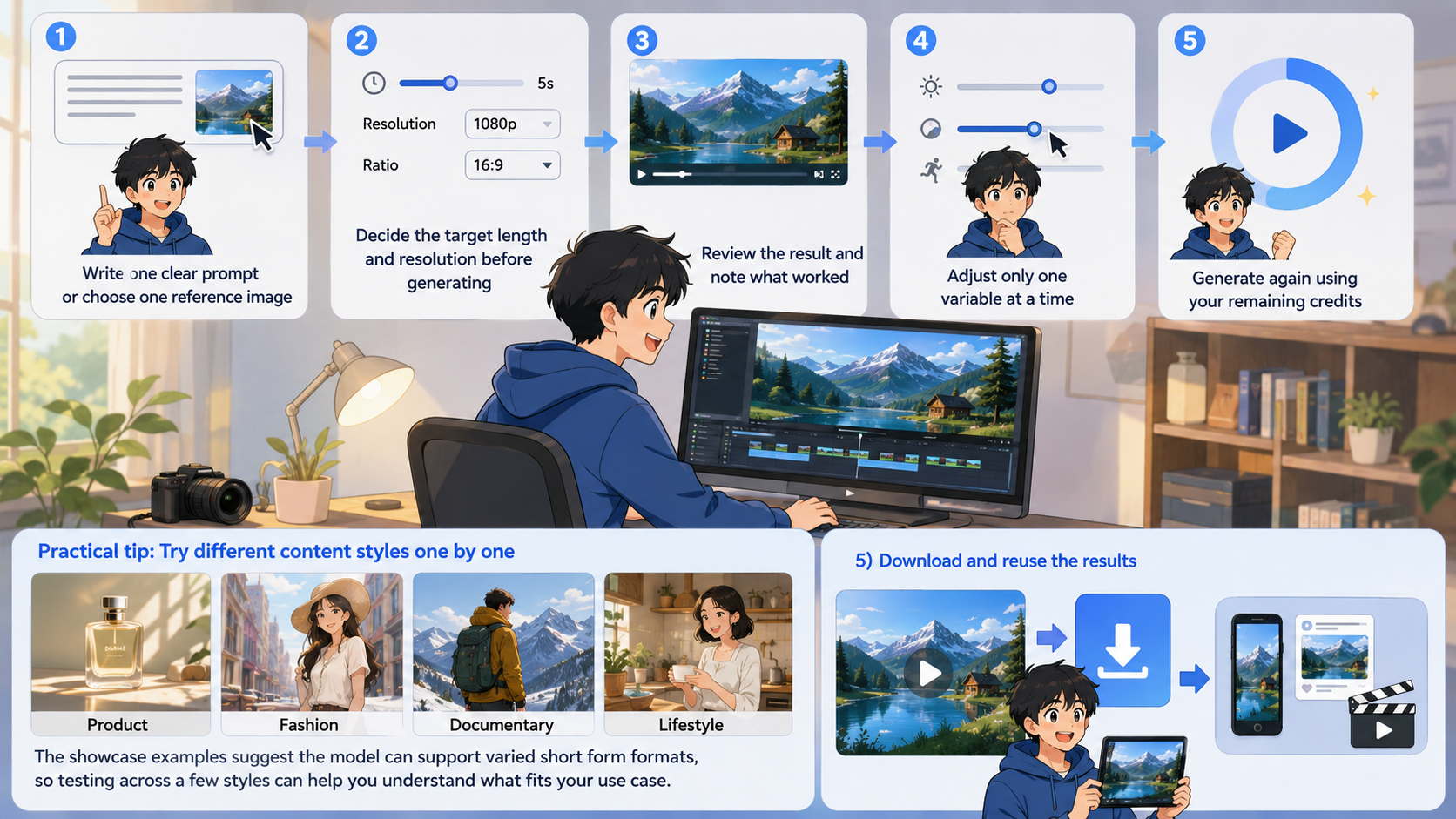
- Write one clear prompt or choose one reference image
- Decide the target length and resolution before generating
- Review the result and note what worked
- Adjust only one variable at a time
- Generate again using your remaining credits
Practical tip:
Try different content styles one by one, such as product, fashion, documentary, or lifestyle. The showcase examples suggest the model can support varied short-form formats, so testing across a few styles can help you understand what fits your use case.
5) Download and reuse the results
Conclusion: Once your video is finished, you can download it as MP4 and use it in your content workflow.
Why this matters:
The platform states that finished renders can be downloaded as MP4. That makes it easier to share the video, edit it further, or publish it on common platforms that accept MP4 files.
What to do next:
- Download the rendered video after generation
- Check whether the output matches your intended length and quality
- Save successful prompts or image inputs for future reuse
- Build a small library of working prompt formats
Practical tip:
Keep a note of which prompt structure produced the best result. Reusing good inputs is one of the easiest ways to save free credits over time.
FAQ
Is Seedance 2.0 really free to try?
Yes. The platform information says new users can access Seedance 2.0 right away and earn credits through daily tasks.

What can I generate with Seedance 2.0?
You can create short AI videos from text prompts or a reference image.
What are the video limits?
Seedance 2.0 supports up to 15 seconds and offers 480p, 720p, and 1080p resolution options.
What format do the finished videos use?
Finished renders can be downloaded as MP4.
Is Seedance 2.0 better for short videos or long videos?
It is built for short-form production, not long-form video.
Summary
If you want to use Seedance 2.0 for free, the most direct path is to sign up on SdanceAI, use the credits available to new users, and earn more through daily tasks. Start with either text-to-video or image-to-video, keep your first tests short, and work within the supported limits of up to 15 seconds and 1080p resolution. By planning each generation carefully, you can explore the model efficiently and get useful results without wasting credits.