
Uncategorized
How to Use Seedance 2.0: A Practical Guide for Creating Short AI Videos
How to Use Seedance 2.0: A Practical Guide for Creating Short AI Videos If you want to turn a text prompt or a single im

If you want to turn a text prompt or a single image into a short AI video, this guide shows you how to use Seedance 2.0 efficiently. You will learn what it supports, how to start, what output limits to expect, and how to get better results for short-form content.
1. Understand What Seedance 2.0 Is Best For
Conclusion: Seedance 2.0 is designed for short AI video creation, not long-form production.
Seedance 2.0 on SdanceAI supports two main workflows: text to video and image to video. It is built for short clips, with output up to 15 seconds and resolutions including 480p, 720p, and 1080p. Finished videos can be downloaded as MP4.
This makes it useful for quick creative work such as social content, product-style clips, fashion shots, lifestyle scenes, and short explainer visuals.
Practical advice:
- Use it when you need a short clip quickly.
- Keep your creative goal focused on one scene or one idea.
- Do not expect it to behave like a long-form video editor.
2. Choose the Right Input Method
Conclusion: Your first decision is whether to start from text or from an image.
Seedance 2.0 supports two creation paths:
- Text to video: Generate a clip directly from a prompt.
- Image to video: Upload a reference image and animate from there.
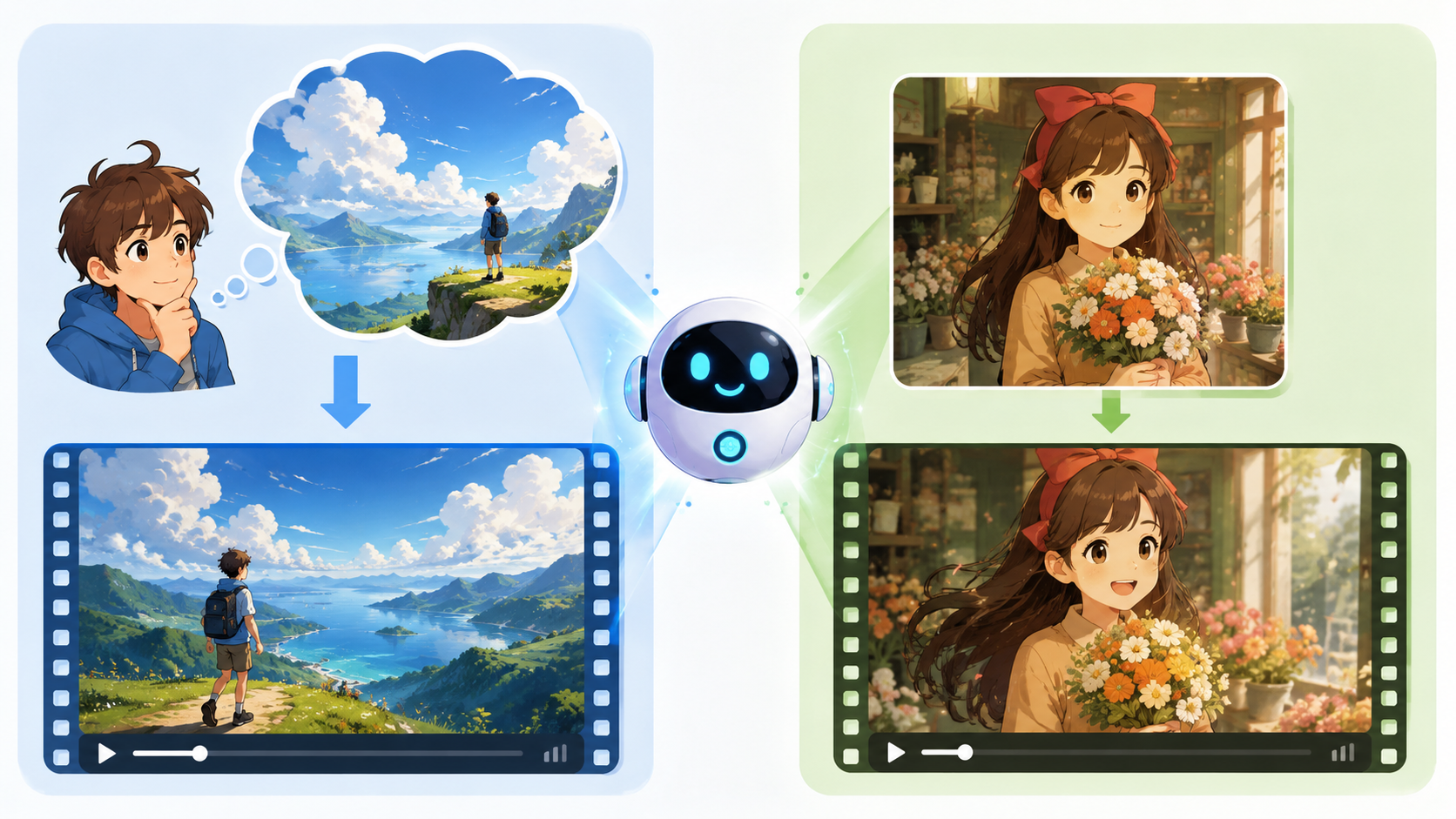
Text to video is better when you want the model to invent the scene from scratch. Image to video is better when you already have a composition, character, or product frame you want to preserve.
| Input method | Best for | What you should prepare |
|---|---|---|
| Text to video | New ideas, scene generation, concept visuals | A clear prompt with subject, action, style, and setting |
| Image to video | Visual continuity, character framing, product shots | A strong reference image with the look you want to animate |
Practical advice:
- Use text to video when you want more creative freedom.
- Use image to video when consistency matters.
- If the first result feels too broad, simplify the input and try again.
3. Set Realistic Output Expectations
Conclusion: Seedance 2.0 is optimized for short clips with specific resolution and duration limits.
According to the available information, Seedance 2.0 supports:
- 480p, 720p, and 1080p
- Up to 15 seconds
- MP4 download format
That means it is well suited to short-form production, but not to projects that require long timelines or extended scene continuity.
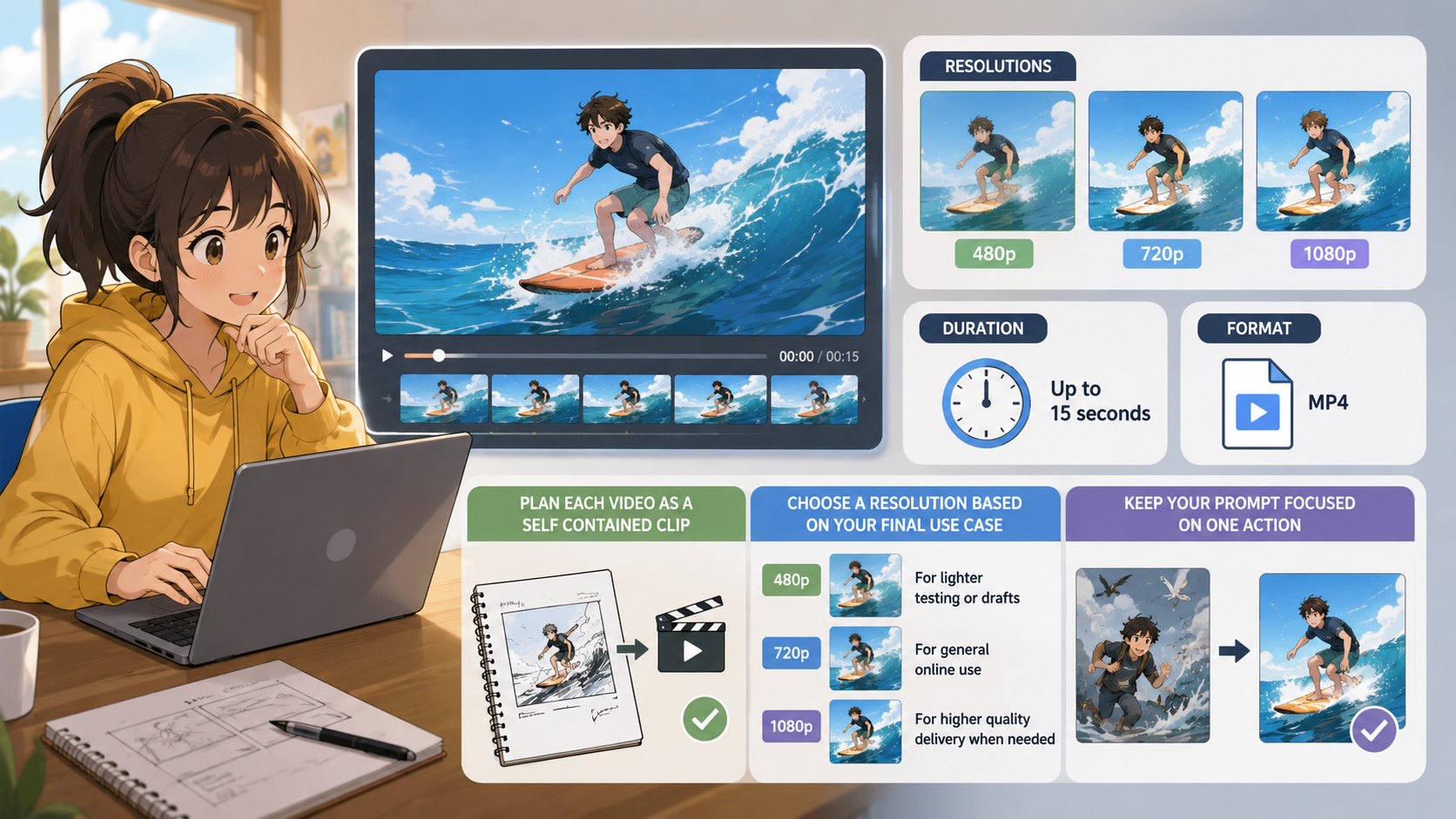
Practical advice:
- Plan each video as a self-contained clip.
- Choose a resolution based on your final use case.
- 480p for lighter testing or drafts
- 720p for general online use
- 1080p for higher-quality delivery when needed
- Keep your prompt focused on one action to fit the short duration.
4. Improve Results with Better Prompting and Framing
Conclusion: The quality of your output depends heavily on how clearly you describe the scene.
For text to video, a prompt should tell the model what the subject is, what happens, and what visual style you want. For image to video, the reference image should already reflect the composition or mood you want to animate.
The sample use cases suggest that Seedance 2.0 can handle a variety of short-form styles, including product, documentary, explainer, fashion, lifestyle, and entertainment content.
Practical advice:
- Keep prompts specific and short.
- Focus on one main subject and one main action.
- Mention the scene type if it matters, such as product, fashion, or explainer.
- If you are using an image, choose a clean, well-composed reference frame.
- Avoid overloading the prompt with too many actions or scene changes.
5. Start Fast and Use Credits Efficiently
Conclusion: New users can access Seedance 2.0 right away and earn credits through daily tasks.
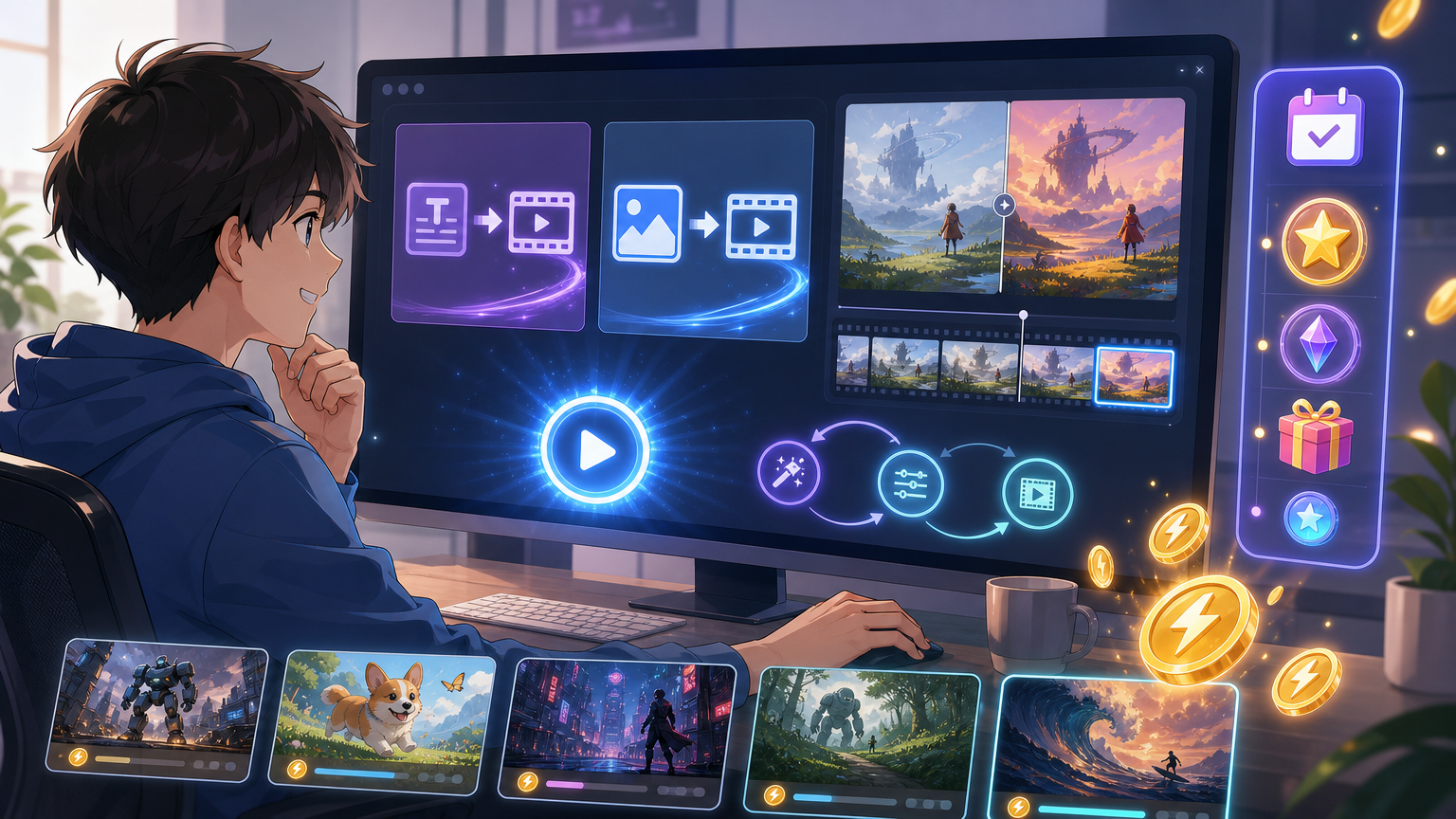
The platform notes that new users can start using Seedance 2.0 immediately and can earn credits through daily tasks. That makes it easier to test different inputs, compare results, and iterate on short clips without needing to overcommit at the start.
If you are also building workflow tools, Seedance 2.0 offers API access, which is useful for developers who want to integrate AI video generation into their own products.
Practical advice:
- Start with small tests before making a final video.
- Use daily credits to experiment with different prompts and reference images.
- If you need automation or product integration, consider the API option.
- Treat early generations as drafts and refine from there.
Quick Workflow Checklist
Use this simple checklist when creating a video with Seedance 2.0:
- Decide whether you want text to video or image to video.
- Prepare a clear prompt or a strong reference image.
- Choose the resolution that matches your use case.
- Keep the clip idea short and focused.
- Generate the video and download the result as MP4.
- Review the output and adjust the prompt or image if needed.
FAQ
What is Seedance 2.0 used for?
Seedance 2.0 is used to create short AI videos from text prompts or reference images.
Does Seedance 2.0 support image to video?
Yes. It supports image to video using one reference image.
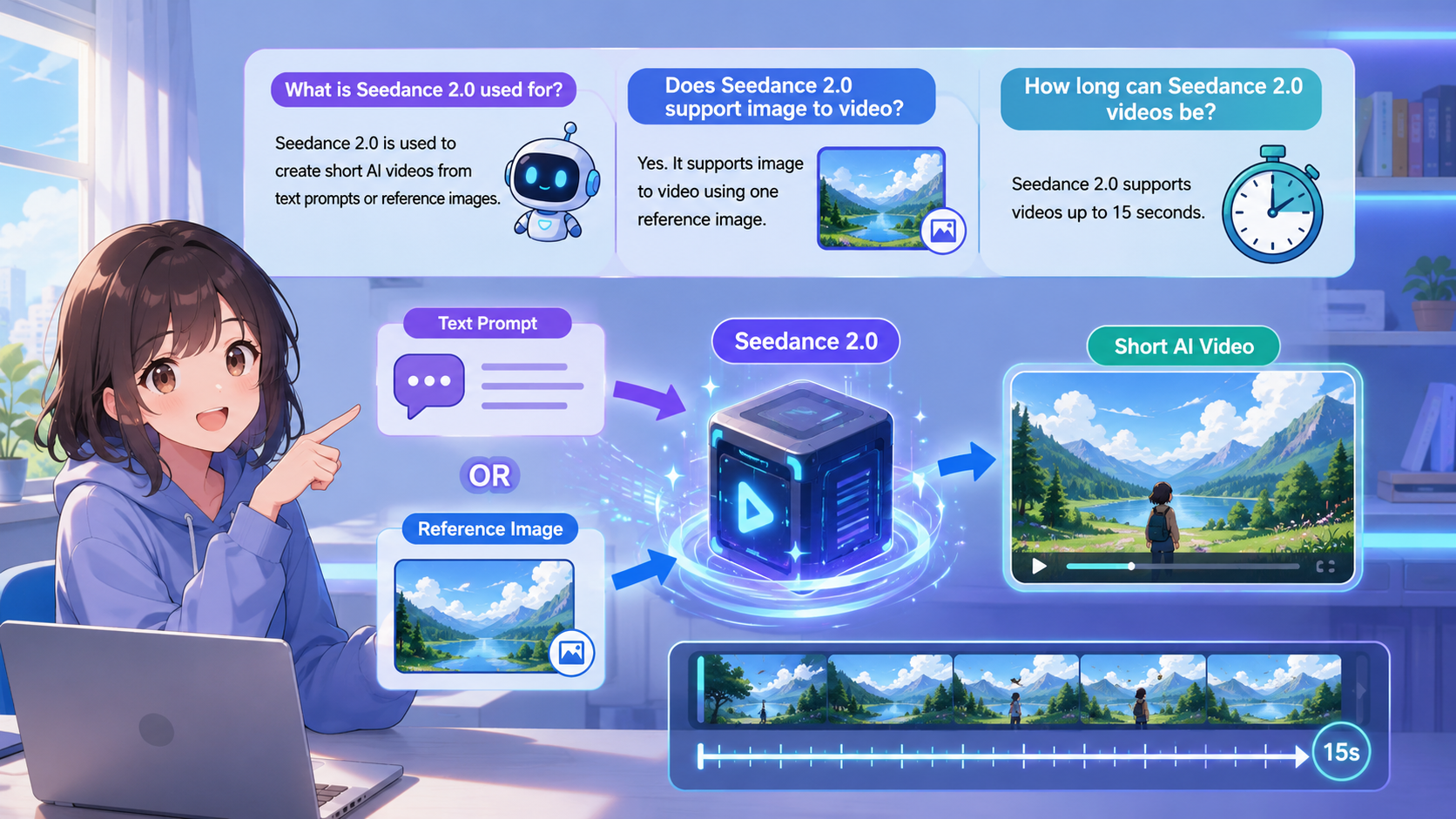
How long can Seedance 2.0 videos be?
Seedance 2.0 supports videos up to 15 seconds.
What resolutions are available?
The available resolutions are 480p, 720p, and 1080p.
Can I download the final video?
Yes. Finished renders can be downloaded as MP4 files.
Is Seedance 2.0 only for individual users?
No. It also provides API access for developers who want to integrate AI video generation into their applications.
Summary
If you are asking how to use Seedance 2.0, the answer is straightforward: choose either text to video or image to video, keep your idea short, match your resolution to your goal, and export the result as MP4. It is built for short-form production, supports up to 15 seconds, and gives new users a way to start quickly with credits earned through daily tasks. For creators and developers who need fast AI video generation, it offers a practical, focused workflow.